


To search CCTV footage quickly, start with what you already know. If you know the time, jump to it on the playback timeline. If you know the place, draw a box with your DVR or NVR's smart search. If you know who, filter for people or vehicles. Scrubbing 12 hours at 8x speed still takes 90 minutes per camera.
Most people only use the play button and the fast forward button. The recorders sold in India by Hikvision, Dahua and CP Plus all have better tools, but they hide them in menus and they only work if something was set up before the incident. This guide covers the order to try them in, why smart search often comes back empty, how long your footage lasts, and how to export a clip someone else can trust.
How to search CCTV footage quickly: start with what you know
The fastest method depends on what you know about the event, not on the brand of recorder. Pick your row in the table, then use the method in that row before anything else.
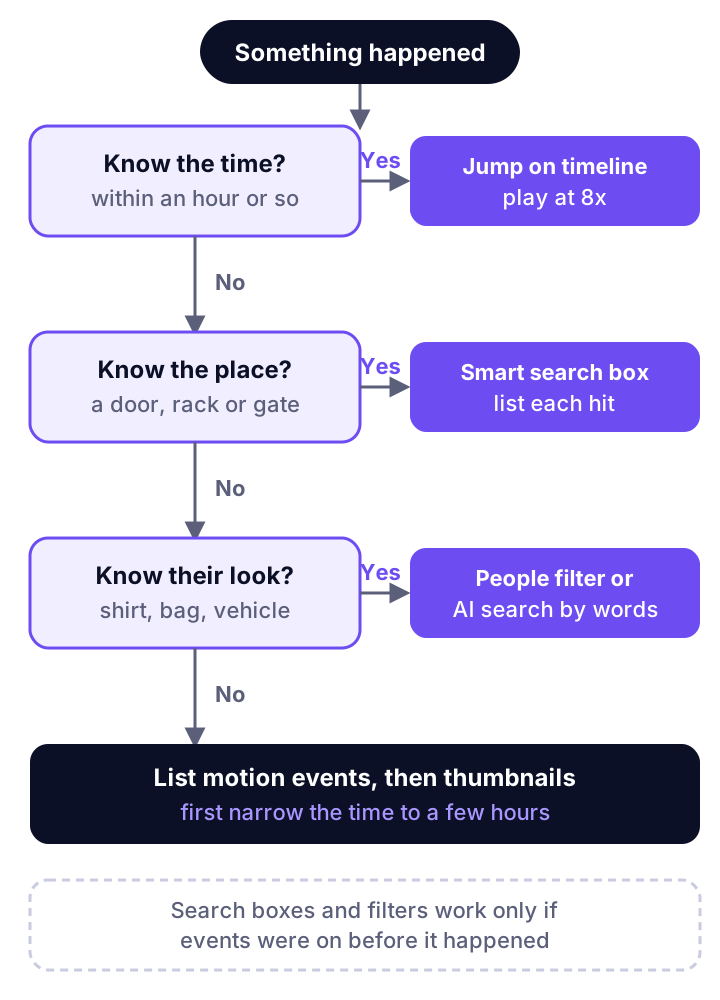
| What you know | Fastest method | Where it is on most recorders | Typical time |
|---|---|---|---|
| The time, within 15 minutes | Jump on the timeline, watch at 1x or 2x | Playback, then calendar and hour | A few minutes |
| The time, within a few hours | Fast forward at 8x or 16x, stop at movement | Playback speed buttons | 15 to 45 minutes per camera |
| The place (a door, a rack, a gate) | Smart search: draw a box or line, list hits | Playback, then Smart or Analytics | A few minutes, if set up |
| What they looked like | Human or vehicle filter, or AI search by description | Smart search filters, or AI software | A few minutes, if set up |
| Nothing at all | Motion or event list, then thumbnails | Event or file search | Long. Narrow the time first |
The times in the last column are rough guides from playback arithmetic, not measured results. The rows marked "if set up" only work when the camera or recorder was tagging events while it recorded.
How to check CCTV recording of a particular time
To check the recording of a particular time, open Playback, choose the camera, choose the date, then move to the hour. This is the one search that works on every recorder with no setup.
- Open Playback on the recorder screen, the PC client or the phone app.
- Pick one camera first. The one that covers the entry or the spot where the thing happened.
- Pick the date. Dates with recording are usually marked on the calendar.
- Jump to the hour, then play at 8x. Slow to 1x when something changes.
- Note the exact time of the event on that camera. Then open the next camera at the same time. People walk from one camera to the next in seconds, so the first time you find is the key to every other camera.
Write down the clock offset too. A recorder clock drifts if it is not set to sync with a time server. If the NVR says 02:14 and your watch said 02:20, note the gap before you tell anyone a time.
Use CCTV smart search when you know the place
Smart search finds every moment something entered an area you draw, so you do not watch the empty hours. It is the biggest time saver most owners never use.
On Hikvision recorders, the smart playback guide says to open Playback, choose Smart from the drop-down, pick a camera and draw a box or line on the picture. Moments when a person or vehicle crossed that rule are marked on the timeline. Dahua recorders keep a similar search under Analytics+ on newer models, and under SMD or Smart Search on older ones. CP Plus recorders use their own menu names. Check the manual for your model, because names change with firmware.
Draw the box tight. A box over the store room door gives you the six times the door was used. A box over half the picture gives you every passing shadow.
Why NVR playback search comes back empty
Smart search often returns nothing because the recorder only searches events it tagged while recording. Hikvision's own help page, Two Steps to Solve No Result of VCA Playback Search, says the event type must be enabled and set up on the camera, and an analog DVR also needs Save Camera VCA Data turned on.
The usual causes:
- Events were never switched on. The camera records all day, but no line crossing or human detection rule exists, so nothing is tagged.
- The camera is too basic. Older analog and entry IP cameras only tag motion, not people or vehicles. Motion search still works, but it returns every leaf and headlight.
- Recording on motion only. If the camera records only when it sees motion, a slow or still person may not be on the disk at all.
- The wrong stream. Some recorders search the sub stream at low detail. Small or far objects get missed.
- A firmware gap. The recorder and camera are from different brands or very different years, and the event data does not pass between them.
None of this can be fixed after the event. You can fix it today, so the next search works.
Find an event in CCTV recording when you know who, not when
When you know what someone looked like but not when they came, use a people or vehicle filter, then go through the thumbnails. AI search by description does the same thing in plain words.
Newer recorders can list every person or vehicle a camera saw in a time window, as a grid of small pictures. You skim the pictures, not the video. Some also filter by clothing colour or vehicle type. This needs cameras that detect people and vehicles on their own, and the feature switched on.
CCTV footage search software with AI goes further. It tags what it sees as the video comes in. Then you can type "man in a red shirt at the back gate" or "white pickup at the dock" and get the matching clips. Some tools take questions in Hindi or Hinglish too. The catch is the same as smart search: the AI must have been watching. It cannot search footage it never saw.
How much time does each method save? A worked example
The figures below are illustrative. They show the arithmetic, not a measured result from any site.
A warehouse finds a carton missing in the morning. It was there at 8 pm. Four cameras cover the stores and the dock, so there are 12 hours on each camera to check, or 48 camera hours in all.
| Method | What you watch | Rough time |
|---|---|---|
| Scrub at 8x on all four cameras | 48 hours ÷ 8 | 6 hours |
| Scrub at 16x on the store room camera, then follow | 12 hours ÷ 16, plus 20 minutes on the other cameras | About 65 minutes |
| Smart search box on the store room door | 6 hits of about 1 minute each, then follow | About 20 minutes |
| AI search: "person carrying a carton, store room, last night" | A short list of clips | A few minutes, if it was watching |
Two things drive the gap. Watching one key camera first, then following the person, cuts most of the work. And any search that lists events instead of hours cuts the rest. The 6 hour row is also where mistakes happen. People get tired and miss the 40 seconds that matter.
How long does your recorder keep footage?
Your recorder keeps footage only until the disk is full, then it writes over the oldest days. Find out the number of days now, not on the day you need it.
Our AI CCTV cost guide works out that one 1080p camera on H.265 uses about 660 GB in 30 days, or about 22 GB a day. As an illustration, here is what that means for disk size:
| Cameras | Disk | About how many days |
|---|---|---|
| 4 | 1 TB | 11 days |
| 8 | 2 TB | 11 days |
| 8 | 4 TB | 22 days |
| 16 | 4 TB | 11 days |
Real numbers change with resolution, frame rate, scene activity and whether the camera records all day or on motion. The quick check: open Playback, pick the oldest date on the calendar, and see what is there. If it is less than a week, a theft found after a long weekend may already be gone. When something happens, export the clip the same day.
How to export a clip the police or a court can use
Export the clip in the recorder's own format, keep the original on the recorder, and write down how you got it. An export that has been edited or screen recorded on a phone is easy to doubt.
- Lock the footage. Many recorders let you lock or tag a file so it is not written over. Do this first.
- Export the original format with the recorder's own player, plus the plain MP4 if the tool offers both.
- Note the details: camera name, recorder model, date, start and end time, clock offset, who exported it and when.
- Do not edit or trim the exported file. Make a separate copy if you need a short version to share.
- Keep a hash of the file if you can. A hash is a fingerprint that shows the file has not changed. Windows can make one with
certutil -hashfile <file> SHA256.
In India, Section 63 of the Bharatiya Sakshya Adhiniyam, 2023 covers electronic records as evidence. It replaced Section 65B of the old Evidence Act from 1 July 2024. An electronic record offered as evidence comes with a certificate in the form given in the Act's Schedule, which asks for the hash value of the record. This is a summary, not legal advice. Ask the police officer or your lawyer exactly what they need from you, and remember that footage of people is personal data. Our readiness check for AI on existing CCTV covers what India's DPDP law asks of camera owners.
Where fast search goes wrong
Every fast method has a blind spot, and it is worth knowing it before you trust a "no result".
- "No hits" does not mean nothing happened. It may mean the rule was not set up, or the person was outside the box you drew. Before you tell anyone "nobody came in", check the key minutes by eye.
- Night footage is grey and soft. Infrared hides colours, so "red shirt" filters fail after dark. Search by place and time instead.
- Thumbnails miss small things. A hand taking a phone off a counter will not show in a grid of people.
- Cameras that do not overlap leave gaps. A person can leave one camera's view and turn up on another three minutes later. Use the time you found and look nearby.
- Phone apps often play the low detail stream. Do your search on the recorder or PC client when detail matters, such as a number plate or a face.
The fix for most of this is set up, not search. Switch on line crossing or human detection on the cameras that cover doors, stores, cash and gates. Check the recorder clock each month. And test a search once a quarter, so you know it works before the day you need it.
Where Camryx fits
Camryx is our AI for the CCTV a business already has, and it is in early access. It connects to the cameras and recorder on site through a small agent on a PC. You ask in plain words, in English, Hindi or Hinglish, and get the answer with the timestamped clip. Smart Search finds clips by look or meaning, "Find similar" finds the same person or vehicle again, and "Where did they go next?" follows them across cameras. It works on what it sees after you connect it, so set it up before you need it. There are no site accuracy figures to share yet. Read how Camryx works with your cameras, or see how the same cameras can watch for PPE in a factory.
Frequently asked questions
How do I check CCTV recording of a particular time?
Open Playback on the recorder or its app, pick the camera, pick the date on the calendar, then type or drag to the hour. Start at 4x or 8x speed and slow down when something moves. If you know the time to within 15 minutes, this is faster than any search tool.
Why does smart search on my NVR show no results?
Usually because the event the search depends on was never switched on. On Hikvision, smart search needs the matching event (such as line crossing or human detection) set up on the camera, and an analog DVR needs Save Camera VCA Data turned on. Search only finds what was tagged while recording, so turn these on now for next time.
How far back can I search CCTV footage?
Only as far as the hard disk holds. Most recorders write over the oldest footage when the disk is full. As an illustration, eight 1080p cameras on H.265 use about 176 GB a day, so a 2 TB disk holds about 11 days. Check the oldest date in Playback today.
How do I give CCTV footage to the police in India?
Export the clip in the recorder's own format with its player, write down the camera, date and time, and keep the original on the recorder. Under Section 63 of the Bharatiya Sakshya Adhiniyam, 2023, an electronic record offered as evidence comes with a certificate. Ask the police or your lawyer what they need from you.
Can AI search CCTV footage by description?
Yes, if the AI has been watching the cameras. These tools tag people, vehicles and events as video comes in, so you can type a description and get matching clips. They cannot search footage they never saw, so set one up before you need it.
Ask your cameras instead of scrubbing
Camryx connects to the CCTV and recorder you already have. Ask what happened in plain words and get the clip. Now in early access.